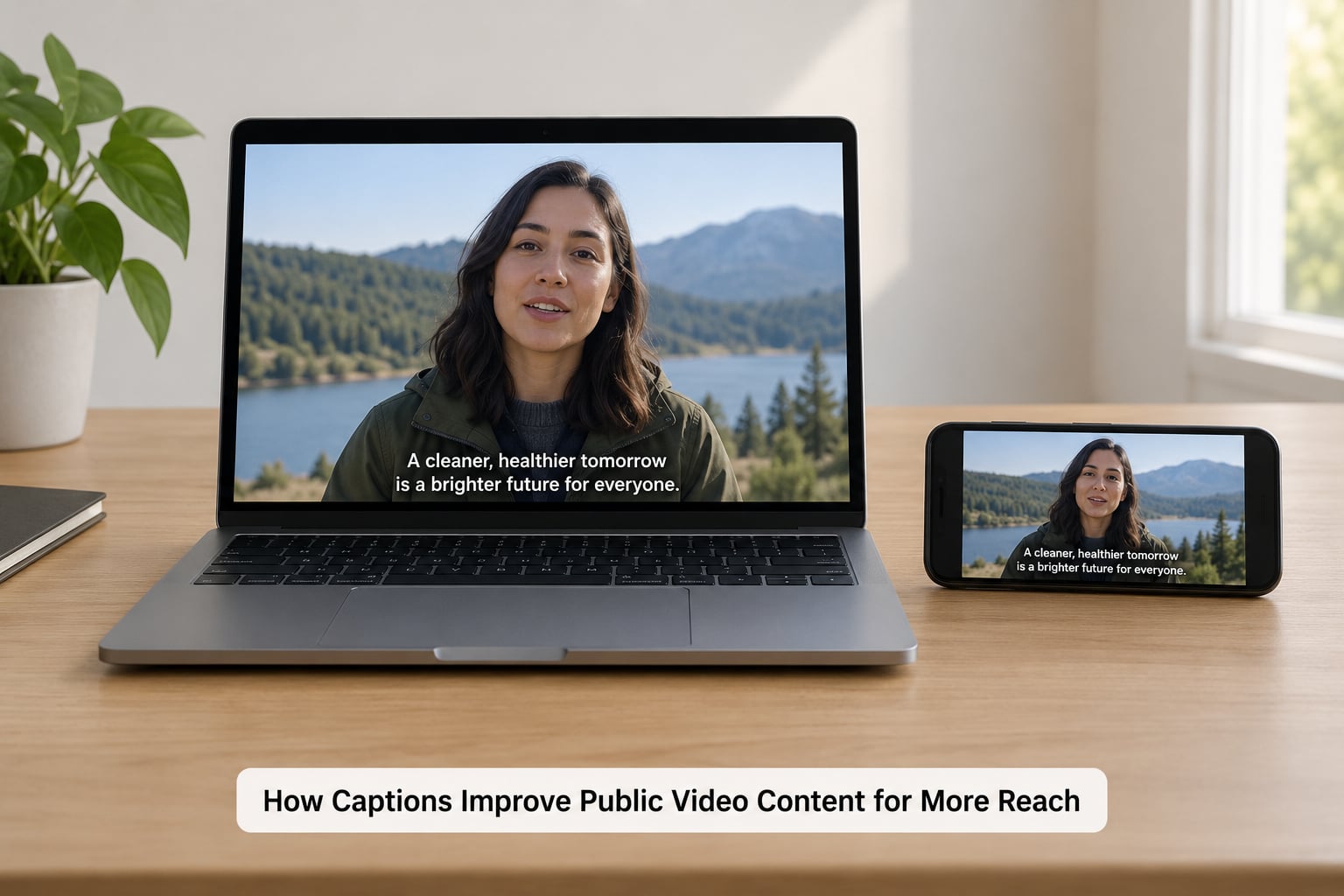
Captions improve public video content by putting the spoken message on screen, so it survives muted autoplay, noisy transit stops, and viewers who cannot hear audio at all. They also give search engines and AI assistants a text layer to index. For municipal teams, civic app developers and public broadcasters, that combination of access, comprehension and discoverability is what turns a posted video into a usable public record.
I have watched a lot of city video that nobody could find and nobody could follow. A road closure notice posted with no caption, a three-hour council recording with an unreadable transcript, an emergency alert that only made sense with sound on in a quiet room. The fix is rarely expensive or complicated. It is a text layer, built carefully and published properly.
What follows covers what captions actually change, which type to use, how to build an accurate one, and how to check the work before it goes live. No affiliate links or product pitches here, just the workflow.
Table of Contents
- How Captions Improve Public Video Content
- Which Types of Captions Should You Add?
- How Do You Make Captions Accurate and Useful?
- What Makes Captions Easy to Read?
- How Can You Add Captions to Public Videos?
- Professional transcription services
- Automatic captioning with human review
- Built-in platform tools
- Manual captioning from scratch
- How Do You Check Caption Quality Before Publishing?
- How Can You Measure Whether Captions Help?
- What Common Captioning Mistakes Should You Avoid?
- Frequently Asked Questions
- Is there a difference between subtitles and captions?
- What are the ADA requirements for closed captioning?
- How to generate captions for your video?
- What do the WCAG guidelines say about video captions?
- What does it mean when captions are auto-generated?
- Conclusion
How Captions Improve Public Video Content
Captions improve public video content in five concrete ways: they widen the audience, they raise comprehension, they lengthen watch time, they put the video into search results, and they satisfy accessibility obligations. Every one of them matters more for civic and public-service video than for commercial content, because the people who cannot get the information are often the people who need it most.
- Access. Deaf and hard of hearing viewers get the same information as everyone else, without asking for a separate accommodation.
- Comprehension. Many people watch public video in places where audio is impossible or unwelcome: a platform meeting, a bus shelter, a waiting room with a television running.
- Retention. A viewer who can follow the words stays past the first few seconds, which is where most public video loses people.
- Discoverability. Spoken words become indexable text, so a transit disruption gets found by a search engine instead of only by the people already subscribed.
- Compliance. WCAG 2.1 AA, Section 508 and the ADA in the US, and the Equality Act 2010 in the UK all treat missing captions on public video as a barrier, not a nicety.
Vendor research cited across this space puts a large share of video views happening with sound off, and captioned videos holding viewers measurably longer than uncaptioned ones. Treat those figures as directional rather than gospel, since methodology varies, but the direction has held steady for years.
There is a retention detail specific to public-sector footage. A council agenda item explained only by the person speaking is lost the moment that person says an acronym nobody defined. Captions make that gap visible, so you can either fix the caption or fix the video.
Which Types of Captions Should You Add?
Open captions are burned into the picture and cannot be turned off. Closed captions live in a separate file or track that the viewer switches on. Subtitles assume the viewer can hear and translate dialogue. SDH captions add speaker identification and non-speech sounds. Pick based on where the video gets watched, not on which is quickest to make.
| Type | Accessibility value | Where it works | Effort |
|---|---|---|---|
| Open (burned-in) | Works everywhere, cannot be disabled | Social feeds, kiosks, transit screens, silent autoplay | Fixed at render; harder to restyle later |
| Closed captions | Full; viewer controls size and contrast | Web players, council portals, learning platforms | Separate SRT or VTT file, easy to update |
| Subtitles | Low for Deaf viewers, high for language access | Multilingual or translated audiences | Needs a translator, not just a transcriber |
| SDH | Full, including sound cues and speaker labels | Meetings, hearings, multi-voice civic footage | Highest; requires listening to every layer |
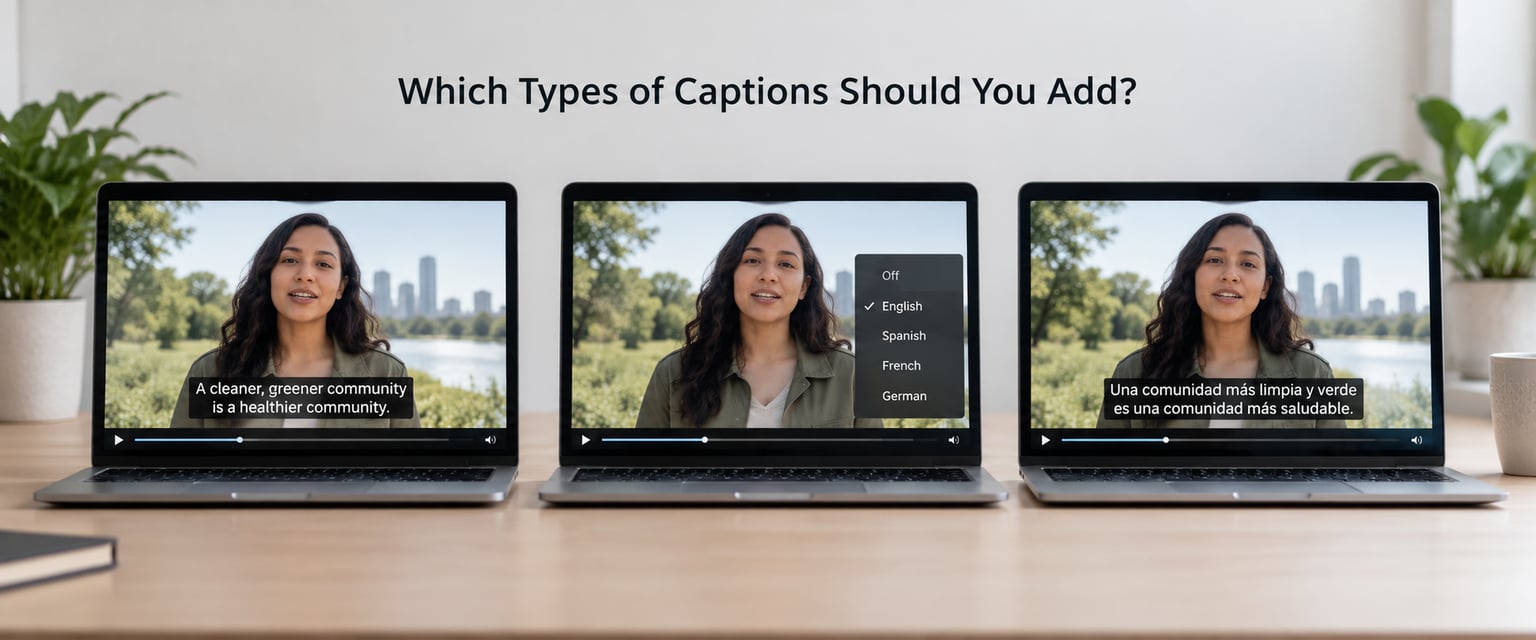
My default for a public agency: closed captions plus a full transcript on the page, and open captions for anything cut for social. If you can only do one, do closed captions. They are the version that a Deaf viewer can actually use, since they control the text size themselves.
One caveat for burned-in text. Non-caption viewers often find it intrusive, particularly on short clips where it covers the middle of the frame. Keep it in the lower third, out of the subtitle safe area, and never across faces.
How Do You Make Captions Accurate and Useful?
Accuracy is not a feature of the tool. It comes from a workflow with a human check at the end. Here is the sequence that holds up under review.
- Transcribe first. Use a transcriptionist or speech recognition to get a rough text track from the final cut, not from the raw footage. Re-editing the video afterwards invalidates the timings.
- Fix the words. Correct proper nouns, street names, ordinance numbers and agency names. Automatic output mangles these consistently, and in civic video they are the whole point.
- Add punctuation that matches speech. Commas and full stops are what let a reader parse a sentence at a glance.
- Label speakers. In meetings, tag Chair, Clerk, and speakers by name or role. Without labels, a multi-voice recording becomes unreadable.
- Mark meaningful sound. Note applause, a siren, a door opening, or background noise that changes meaning. Not every sound, only ones the viewer needs.
- Set timing. Captions should appear slightly ahead of the spoken word and leave before the next line starts. Overlapping text is the fastest way to lose a viewer.
- Proofread against the final video. Watch it once at full speed with the caption file open. Skimming the text alone misses drift.
- Export and attach. Upload the caption file with the video, and keep a copy of the transcript alongside it.
For multi-voice civic footage, the speaker step is where quality is won or lost. Deaf and hard of hearing viewers report consistently that caption quality, not caption presence, decides whether they keep watching.
What Makes Captions Easy to Read?
Readable captions follow a handful of rules that any editor can apply in ten minutes. Line length first: two lines per caption, roughly 32 to 42 characters each.
Poor: Please note that the intersection of Fifth and Main will be closed starting Monday for resurfacing work
Better: Please note that the intersection of Fifth and Main will be closed starting Monday / for resurfacing work
Keep reading speed near 15 to 17 characters per second. If a line needs longer than three seconds on screen, break it earlier. Size text so it stays legible on a phone held at arm’s length, which is a smaller relative size than most desktop editing defaults give you.
Contrast matters as much as size. White text with a solid or semi-solid dark band behind it reads cleanly over any footage. Thin outline-only text disappears against bright sky or pale concrete, which municipal video is full of.
Placement should sit in the lower third, clear of the very bottom edge where mobile players put their own controls. Test on a phone before you publish, because a caption you cannot read on a small screen is not an accessibility feature.
How Can You Add Captions to Public Videos?
Most small civic media teams end up combining routes rather than picking one.
Professional transcription services
Contract a vendor for meetings, hearings and anything with legal weight. You get speaker labels, sound cues and human proofreading. The trade-off is turnaround time and per-minute cost, which matters when a council recording has to be published within a fixed window.
Automatic captioning with human review
Speech recognition generates the first draft, a person fixes it. This is the practical middle for routine notices and explainers, and it is where most of the time saving actually lives.
Built-in platform tools
YouTube, Vimeo and most social platforms will generate a track in the browser in a few clicks. Fine for a quick turnaround, and you still need to read it before you publish, especially names and dates.
Manual captioning from scratch
Typing your own file is slow but total control. It suits short clips, social edits and anything where you already know the exact wording.
| Route | Accuracy | Speed | Best for |
|---|---|---|---|
| Automatic only | Uneven, names often wrong | Minutes | Draft previews, internal review |
| Automatic plus human review | Good | Hours | Notices, explainers, social edits |
| Human from scratch | High | Slow | Emergency alerts, short critical clips |
| Contracted vendor | Highest | Scheduled | Meetings, hearings, live recordings |
File format is a small decision with a big consequence. SRT is the widely compatible plain-text format. VTT is the web standard, supports styling, and is what HTML5 players expect. Most players accept both, and most editing tools export both, so there is rarely a reason to agonise.
How Do You Check Caption Quality Before Publishing?
Run this pass before the video goes anywhere public. It takes about fifteen minutes on a short clip.
- Play the video start to finish with the captions on, once, without editing anything.
- Confirm every name, date, number and place name matches what was said.
- Check that no two captions overlap and none linger after the speaker moves on.
- Check that speaker labels are present and correct wherever voices change.
- View it on a phone, on a laptop, and on a large screen. If it fails on any of them, adjust.
- Toggle captions off and on again to confirm the control works for every viewer.
- Confirm the transcript is published on the page, not just attached to the file.
- Note whether the captions were machine-generated or human-reviewed, and say so somewhere visible.
That last point is worth taking seriously. Viewers report they cannot tell whether a track was checked by a person, and being honest about it costs nothing.
How Can You Measure Whether Captions Help?
Measurement is where most public video programmes fall short, simply because nothing is set up to record it. A few signals are worth watching.
Completion rate and average watch time usually move first. Retention at the 30-second mark tells you whether people could follow the opening. Rewatch spikes on a specific section often mean captions drift or a term was unintelligible there. Search impressions on the video page reflect whether the caption text is being indexed at all. Accessibility feedback and accommodation requests tell you directly who was previously locked out.
Be careful with the claim, though. A rise in views after you add captions is not proof that captions caused it. Publishing schedule, a mayor’s retweet, or a search algorithm update can all move the same number. If you want a real answer, publish comparable videos with and without captions and compare the retention curve rather than the view total.
What Common Captioning Mistakes Should You Avoid?
- Publishing raw automatic output. Names get mangled and the damage to trust is permanent. Always read it.
- Labelling machine output as verified. Say it was auto-generated if it was.
- Crowding the frame. Three or more lines, or text across the lower edge, becomes unreadable on a phone.
- Too-small type. If you have to squint on a laptop, so will the person on a bus.
- Dropping meaningful sound. A siren or an interruption can change what a public notice means.
- Skipping speaker labels in meetings. Multi-voice footage without labels is effectively unusable for many viewers.
- Forgetting the transcript. Some people read rather than watch, and some search engines read rather than crawl video.
- Assuming captions solve language access. Translated captions are a separate deliverable, and in a multilingual city they matter as much as the original.
One more: a useful trick for public video is treating the caption text as a data asset. Council transcripts, notice wording and alert scripts can feed your open-data portal, your app content and your search index from a single source.
Frequently Asked Questions
Is there a difference between subtitles and captions?
Yes. Subtitles assume the viewer can hear and only need words translated into a readable form. Captions assume the viewer cannot hear, so they also identify speakers and include meaningful non-speech sounds such as applause or a siren. Captions also serve anyone watching on mute, in a noisy place, or in a language that is not their first.
What are the ADA requirements for closed captioning?
The ADA treats video as covered content under Title II for public entities and Title III for places of public accommodation, which includes most civic video online. Practically, that means captions are an accessibility accommodation, not an optional extra. WCAG 2.1 AA success criteria 1.2.2 and 1.2.4 set the bar for prerecorded and live video, and Section 508 applies to federal content.
How to generate captions for your video?
Generate them from the final edited cut. Run the audio through a transcriptionist or speech recognition tool, correct the text, add punctuation and speaker labels, set the timing so lines do not overlap, then proofread while watching the video at full speed. Export as SRT or VTT, upload it with the video, and publish a full transcript on the page.
What do the WCAG guidelines say about video captions?
WCAG 2.1 AA requires captions for prerecorded audio content in synchronised media, which covers most published video. The criteria also ask that captions be accurate, complete, properly synchronised and placed so they do not obscure the visual content. Live video has a parallel requirement with an exception for live captions when accuracy cannot be guaranteed in real time.
What does it mean when captions are auto-generated?
It means a speech recognition model produced the text without a person correcting it. Accuracy varies with audio quality, accents, background noise and multiple speakers, and proper nouns are usually the first thing to go wrong. Auto-generated captions are a reasonable starting draft, but they should be reviewed and labelled honestly as machine-produced before publication.
Conclusion
Captions turn spoken public video into something people can read, search and share, and for civic audiences that is often the difference between an announcement that lands and one that does not. Start by deciding what the video is for, since an emergency alert and a training module need different caption treatment. Then choose the format, closed captions for web and open captions for silent social feeds. Finally, proofread the first transcript against the final video before it ships, because that single hour is what separates captions that work from captions that annoy people into turning them off.