
If you have ever overwritten a working file and lost an afternoon, you have already run into the problem version control solves. Version control records every change made to your files over time, so you can see exactly what changed, who changed it, and restore any earlier version whenever you need to. Git is the tool that does this on almost every new project today.
Most beginners bounce off Git because the commands arrive before the idea. So this guide builds the mental model first — snapshots, three storage areas, branches — and only then shows the handful of commands you actually need on day one. If you understand how version control works for beginners at that level, the rest is details you can pick up later.
Throughout, I will use one running example: a small city mobility app that shows transit departures and bike-lane disruptions, built by a three-person team. Updated for 2026, this guide works on macOS, Linux and Windows, using Git from the command line or any graphical client that wraps it.
Table of Contents
- What Is Version Control and Why Does It Matter?
- How Does Version Control Track Changes?
- How version control works for beginners: snapshots, not diffs
- The three generations of version control systems
- What Happens When You Run Git Commands?
- What Are the Working Tree, Staging Area, and Repository?
- How Does Version Control Work for Beginners Using Git?
- Git, GitHub, and GitLab are three different things
- Why Do Developers Use Branches?
- How Do Branches Get Combined?
- How Does Version Control Help Teams Collaborate?
- What Should Beginners Avoid When Using Version Control?
- Frequently Asked Questions
- Is Git the same as version control?
- Do I need to understand code to use version control?
- What is a commit in Git?
- Why use branches instead of editing the main branch directly?
- What should I do if I make a mistake or delete a file?
- Conclusion: Start With One Small Repository
What Is Version Control and Why Does It Matter?
Version control is a system that records every change made to a set of files over time, so you can see what changed, who changed it, and restore any earlier version whenever you need to.
Without it, “keeping the old version” means copying a folder and pasting a date onto it. You end up with final.docx, final-v2.docx, final-really.docx, and no idea which one your teammate is editing. That is the version control problem in miniature, and it gets worse the moment more than one person touches the same project.
Here is what a version control system actually fixes:
- Lost work. A file you deleted is recoverable, because the history still holds a copy of it.
- Overwritten changes. Two people can edit the same file, and the system will show both edits instead of silently discarding one.
- Mystery breakage. When something stops working, you can find the exact change that caused it and undo just that change.
- Fear of trying ideas. You can experiment on a separate line of work without touching the version that currently works.
- Onboarding. A new teammate gets the entire project history, not a zip file of the current state.
Our mobility app team hits all five. Someone changes the departure-time formatting, someone else is mid-way through adding a new map view, and a third person is about to deploy. Without version control, that is a genuinely stressful afternoon.
How Does Version Control Track Changes?
A version control system tracks changes by taking a snapshot of your files every time you ask it to, bundling that snapshot with your name, the current time, a message you write, and a link back to the snapshot before it. Those snapshots accumulate into a history you can walk through in either direction.
How version control works for beginners: snapshots, not diffs
Older systems stored history as a list of differences — “line 14 changed from A to B” — against a single current copy of the files. That saves space, but recovering an old version means replaying every difference backwards, and a single missing difference breaks the whole replay.
Git takes a different approach. Every commit is a full snapshot of the project, and each snapshot points to the one before it. Yes, that sounds wasteful. In practice Git compresses the unchanged files and stores an identical file once, pointing to the same stored copy from multiple commits, so the redundancy costs far less than the picture suggests. The practical benefit is the one that matters for a beginner: any commit can be checked out instantly, with no replay step to go wrong.
Each snapshot gets a unique identifier — a commit hash — computed from its contents and its parent. Change one character and the hash changes completely, which is exactly what makes the system trustworthy: the identifier is a fingerprint of the actual content.
The three generations of version control systems
Understanding why Git looks the way it does makes the commands less arbitrary:
- Local version control. Tools like RCS kept a change log for one person on one machine. Fine for yourself, useless the moment a second person is involved.
- Centralized version control (CVCS). Subversion, CVS and Perforce store everything on one server. Everyone checks files out from that server, so the server is a single point of failure and you cannot commit while offline.
- Distributed version control (DVCS). Git and Mercurial give every person a complete copy of the full history on their own machine. Committing offline just works, and every clone doubles as a full backup.
Git became the standard because it is fast, open source, handles branching cheaply, and has a huge ecosystem around it. Linus Torvalds built it to manage the Linux kernel source code, a workload that broke the previous model entirely.
What Happens When You Run Git Commands?
Every Git command does one specific thing to your files or your history. Here are the ones you will actually use most, with what success looks like.
| Command | What it does | What success looks like |
|---|---|---|
git status | Shows which files are modified, staged, or untracked | A short list of files and the branch you are on |
git add file.html | Puts one file in the staging area | No output; the file moves to the “Changes to be committed” list |
git commit -m "message" | Records a snapshot of everything staged | A line showing how many files changed, plus a short hash |
git log | Prints the history, newest first | A list of commits with hash, author, date and message |
git diff | Shows unstaged changes line by line | Red lines removed, green lines added |
git restore file.html | Throws away unstaged edits to a file | The file returns to its last committed state |
git switch -c feature-name | Creates a branch and moves onto it | Output saying you switched to a new branch |
git push | Sends your commits to the remote repository | Output counting objects, or “Everything up-to-date” |
Note that git commit by itself does nothing if nothing is staged. That trips up nearly everyone once: you edit a file, run commit, and Git tells you there is nothing to commit because you never staged the file.
What Are the Working Tree, Staging Area, and Repository?
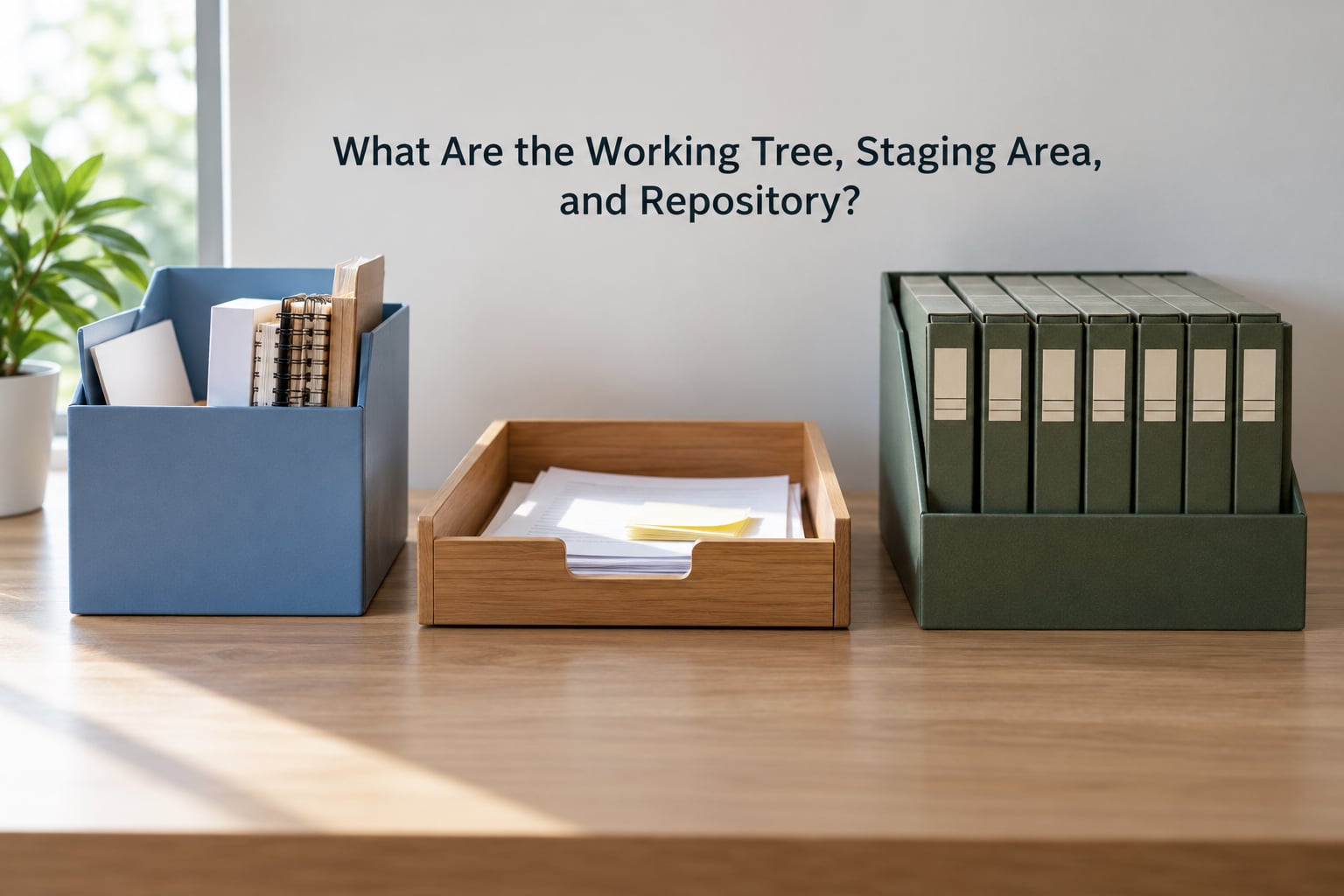
Git keeps your project in three places, and knowing which one a file is in explains almost every confusing Git message. The working tree is the folder you edit on your machine. The staging area is a holding tray for the changes you have chosen to include in the next snapshot. The repository is the permanent, compressed archive of every snapshot you have committed.
| Area | What it holds | Think of it as |
|---|---|---|
| Working tree | Your live files, including uncommitted edits | The desk you are working at |
| Staging area (index) | Exactly the changes queued for the next commit | A shopping basket you are filling |
| Repository (.git) | Every commit, every branch, every message | The filing cabinet |
Files move through those areas on purpose, because the staging area lets you commit part of your work. Suppose you fixed a typo in index.html and also started a large feature in map.js. Stage only the typo fix, commit it, and the half-finished feature stays safely uncommitted on your desk.
The repository lives in a hidden .git folder inside your project. Delete it and the project history is gone, which is why you push to a remote as well as committing locally.
How Does Version Control Work for Beginners Using Git?
Here is a first project from nothing to a pushed repository. Install Git from your system’s package manager first, then tell it who you are so commits are attributed correctly.
git config --global user.name "Your Name"
git config --global user.email "[email protected]"
Those two lines write your identity into a global settings file, so you never retype it per project. Next, create the folder for the mobility app and turn it into a repository.
mkdir transit-pulse
cd transit-pulse
git init
git init creates the hidden .git folder and tells Git to start tracking this folder. Nothing has been recorded yet at this point — the history starts only when you commit.
Write a first file, then add and commit it:
git add index.html
git commit -m "Add departure board layout"
git add moves the file into the staging area. git commit takes a snapshot of everything staged, records your name, the date and the message, and files it in the repository. Git prints something like [main 3f9a1c2] Add departure board layout — that short code is the commit hash.
Now connect it to a remote so a second person (or your laptop at home) can get the same history. Create an empty repository on GitHub, GitLab or Bitbucket, then add the address and push.
git remote add origin https://example.com/your-org/transit-pulse.git
git push -u origin main
The -u flag sets the default upstream, so later pushes are just git push. If someone else is holding the URL you skipped straight to, git clone downloads the whole project and its full history onto their machine in one command.
Git, GitHub, and GitLab are three different things
This distinction causes more confusion than any other, because people use the words interchangeably. Git is the version control program that lives on your machine. GitHub and GitLab are hosting services where repositories live so other people can access them.
| Tool | What it is | Runs where |
|---|---|---|
| Git | The version control system itself | On your machine |
| GitHub | Hosting service, pull requests, issues, actions | On the internet |
| GitLab | Hosting service, plus its own CI and merge request flow | On the internet, or self-hosted |
| GitHub Desktop / VS Code panel | Graphical interface that runs the same Git underneath | On your machine |
You can use Git for years without ever creating an account anywhere, and you can move a repository between hosts later without rewriting its history.
Why Do Developers Use Branches?
A branch is a movable label pointing at a commit, which means creating one costs almost nothing and does not copy any files. That is why developers use branches: they let two people work on the same project in parallel without touching each other’s code.
Picture the mobility app. One developer is adding walking directions to the transit view. Another finds that the app shows stale departure times on iOS and needs a two-line fix today.
The second developer creates fix-departure-cache, makes the fix, and merges it back to main within the hour. The first developer stays on feature-walking-directions for a week, untested and half-finished, and nobody’s work is in danger. On a shared main branch, that two-line fix would have arrived tangled up with a thousand lines of unfinished work.
Branching is safe because the main branch is just another pointer. If a branch goes wrong, nothing is lost: the commits still exist, and git log will find them.
How Do Branches Get Combined?
Branches get combined through a merge, which folds one line of history into another. On a team, that merge is usually wrapped in a pull request: you propose your branch, someone else reads the diff and comments, and once it looks right you merge. For our small team, the pull request is where a second pair of eyes catches the change that quietly breaks the departure list on small screens.
Git merges automatically when two branches changed different things. When they changed the same lines in the same file, Git stops and marks the spot, and you resolve it by hand. The markers look like this:
<<<<<<< HEAD
format = "%H:%M"
=======
format = "%H:%M %Z"
>>>>>>> feature-timezones
Three steps, every time:
- Open the file. Everything between the
<<<<<<<and=======lines is one side, everything after=======is the other. - Delete the markers and keep what you want. You can keep one side, the other, or a merged combination. Then remove all three marker lines.
- Stage and commit. Run
git addon the file andgit commit. The merge finishes and the markers never reach your history.
A conflict is not corruption or lost work. Both versions are sitting in your folder, marked, waiting for a decision that only a human can make.
How Does Version Control Help Teams Collaborate?
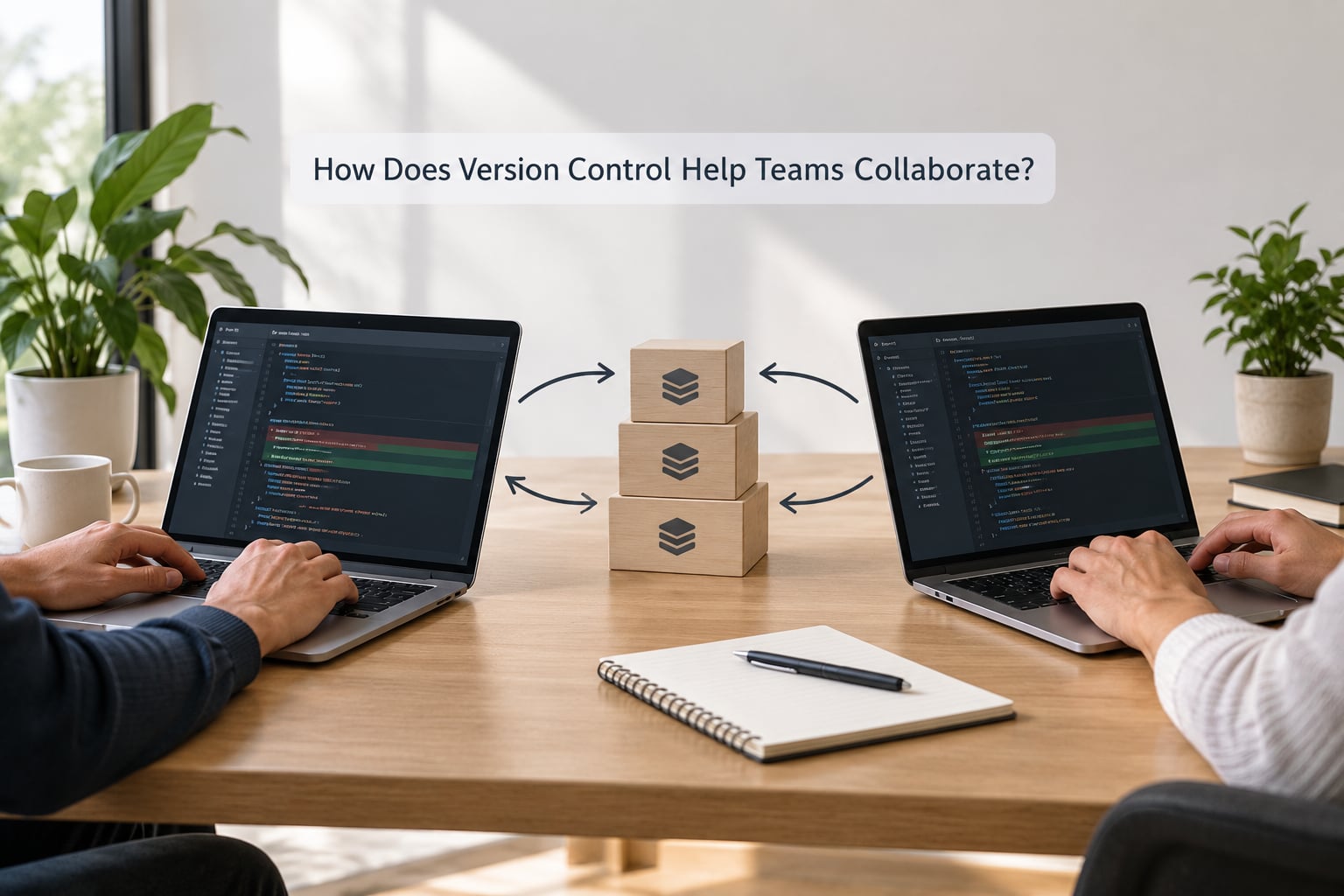
Version control helps teams collaborate because everyone works on their own copy of the full history and syncs deliberately. The shared remote repository acts as the meeting point where work is published, reviewed and pulled in. Nobody edits the same files in the same second without noticing.
The daily loop is short. You git pull in the morning to get everyone else’s work, edit locally, git commit as you go, git push when a piece is finished, and open a pull request. If a reviewer suggests changes, you address them on the same branch and push again. Meanwhile main stays deployable, because unfinished work lives on branches that nobody has merged yet.
That loop works under deadline pressure too, which matters if you build things in hackathons. Our rule for a 48-hour build: commit every time something runs, push at least every couple of hours, and open the pull request the moment a feature is demoable. The team always has a working version to fall back to, and one person’s late change cannot freeze the other four.
The reassuring part, which beginners rarely hear: working developers use a small slice of Git day to day. A dozen commands cover the overwhelming majority of real work. The rest is available when a problem demands it, and nobody expects a new team member to know it on day one.
What Should Beginners Avoid When Using Version Control?
Most of what people call a Git disaster is a small, well-understood mistake with a standard fix. Avoid these patterns instead, and you will lose almost nothing.
- Writing messages like “update” or “fix”. In six months, that is your only clue about what changed. Write what the commit does, not that you did something.
- Committing secrets. API keys and passwords in a committed file stay in the history even after you delete them. Put secrets in environment variables and add a
.gitignorebefore your first commit. - Committing straight to main. A broken main blocks the whole team. Branch first, even for small changes.
- Force pushing shared branches.
git push --forcecan overwrite a teammate’s commits. Use--force-with-lease, or just ask. - Learning every command at once. Memorizing dozens of commands without a mental model is why tutorials fail. Learn status, add, commit, log, diff, switch, merge, push, pull.
- Waiting a week to commit. Small commits are easy to review and easy to undo. One giant commit is neither.
And one reassurance: if you delete a file that was committed, it is still in the history. Find the commit that last touched it and check it out again. Git cannot lose a commit you made — losing the .git folder or a hard drive is a different problem, which is why you push to a remote.
Frequently Asked Questions
Is Git the same as version control?
No. Version control is the general idea of recording changes to files over time, and a version control system is any tool that does it. Git is one specific version control system, and today the most widely used one. You can learn the concepts without Git, but Git is what most teams expect you to know, so it is the practical starting point.
Do I need to understand code to use version control?
Not really. Git tracks any file you commit, including Markdown docs, CSV files, configuration files, notebooks and design exports. Many civic data and operations teams version spreadsheets and city datasets this way. What helps is being comfortable with folders and files, not with programming. Graphical clients exist if the command line is the part blocking you.
What is a commit in Git?
A commit is one snapshot of your project stored permanently in the repository. It records your files at that moment plus your name, the date, a message you wrote, and a pointer to the commit before it. Because every commit points backwards, the history forms a chain you can walk through, compare, and restore. Committing locally needs no internet connection at all.
Why use branches instead of editing the main branch directly?
A branch is a cheap, movable label pointing at a commit, so creating one costs almost nothing. Working on a branch means unfinished work, experiments, and risky changes never touch the version of the project that currently works. You can take as long as you need, then merge once it is ready, or abandon the branch and delete it with your commits still recoverable in the log.
What should I do if I make a mistake or delete a file?
Do not panic. If the file was committed, run git log to find the last commit that contained it, then check that version out again. Unstaged edits can be discarded with git restore, and a committed change can be reversed with a new commit that undoes it. Almost nothing is unrecoverable until you delete the .git folder or lose the machine holding it.
Conclusion: Start With One Small Repository
How version control works for beginners comes down to three ideas: every commit is a full snapshot that points to the one before it, your work moves from the working tree through the staging area into the repository, and a branch is a free extra line of work you can throw away. Everything else is practice.
So make one small repository today, on a folder you do not mind experimenting in. Make two focused commits, write messages that say what the commits actually did, then run git log and read your own history back. That single exercise teaches more than an hour of reading about Git, and every later command will land somewhere you already understand.