If you want to know how to reduce app data usage on a small or prepaid plan, the method comes down to four moves: measure which apps actually burn your allowance, cut their background data, turn on your system data-saving mode, and push streaming, downloads and updates onto Wi-Fi. Set aside about fifteen minutes.
That last part matters more than it sounds. On a low-cost plan the cap is small, so a couple of hours of auto-quality video or a silent photo backup can eat a month’s worth of data while you sleep. Users on tiny plans regularly report that one switch, Low Data Mode on iPhone or Data Saver on Android, was the single change that made the plan usable.
Below I have split everything by platform, because a lot of advice out there sends Android menu paths to iPhone users and vice versa. Labels also shift with OS versions and phone makers, so I have named the setting and the approximate location rather than pretending one path works everywhere.
Table of Contents
- What You Need
- Mobile data and Wi-Fi are the same bytes, billed differently
- Step-by-Step
- How to Set Data Saver Mode on Android
- How to Restrict Background App Data on iPhone
- How to Stop Apps Syncing Large Files
- How to Reduce Browser and Streaming Data
- How to Check Which Apps Use the Most Data
- How to Save Data in Your Own App
- Common Mistakes
- Frequently Asked Questions
- Does Data Saver or Low Data Mode really reduce app data usage?
- Can I set an app to use Wi-Fi only on Android?
- Do offline maps really save data on a capped plan?
- How much data does streaming video use on mobile data?
- Will turning off cellular data for an app break it?
- Should I reset my data usage statistics?
- Conclusion
What You Need
You need three things: your phone with its passcode, access to your carrier’s account view so you can compare the phone’s numbers against the bill, and a Wi-Fi connection for the set-up step. No new apps are required.
Before changing anything, take a baseline reading of your per-app data usage screen. Without it you cannot tell whether your changes worked, and you will not know which app was actually responsible for the spike.
Mobile data and Wi-Fi are the same bytes, billed differently
App data usage counts every byte your phone pulls down, whether it arrives over cellular or Wi-Fi. The difference is what you pay for: mobile data comes out of your capped allowance, while Wi-Fi comes from a fixed home or office connection.
That is why settings such as metered connection on Android and Wi-Fi-only options on iPhone exist. They let you decide which network an app is allowed to use, rather than letting the phone decide for you based on which connection looks faster at that moment.
| Setting | iPhone path | Android path | What it stops |
|---|---|---|---|
| Low Data Mode / Data Saver | Settings > Cellular > Cellular Data Options > Low Data Mode | Settings > Network & internet > Data Saver (Stock); Connections > Data usage on some Samsung models | Background syncing, auto-updates, and high-quality streaming |
| Per-app data view | Settings > Cellular, scroll to the app list | Settings > Network & internet > Data usage > Mobile data usage | Nothing directly, but it tells you what to fix |
| Per-app cellular switch | Settings > Cellular, toggle an individual app off | Data usage > Mobile data usage > app > Restrict background data | An app using cellular at all, or only when closed |
| Network switching | Settings > Wi-Fi > Wi-Fi Assist | Settings > Wi-Fi > Network switch (Samsung and some others) | Silent fallback to mobile data on weak Wi-Fi |
| Usage alert | Carrier app or account page | Settings > Network & internet > Data usage > Data warning | Nothing, but it warns you before you pass the cap |
Two things to do before you start. Turn on your carrier’s usage alerts or autopay notifications in the carrier app or account portal, and screenshot your current per-app usage screen. Both take a minute and both give you something to compare against later.
Step-by-Step
How to Set Data Saver Mode on Android
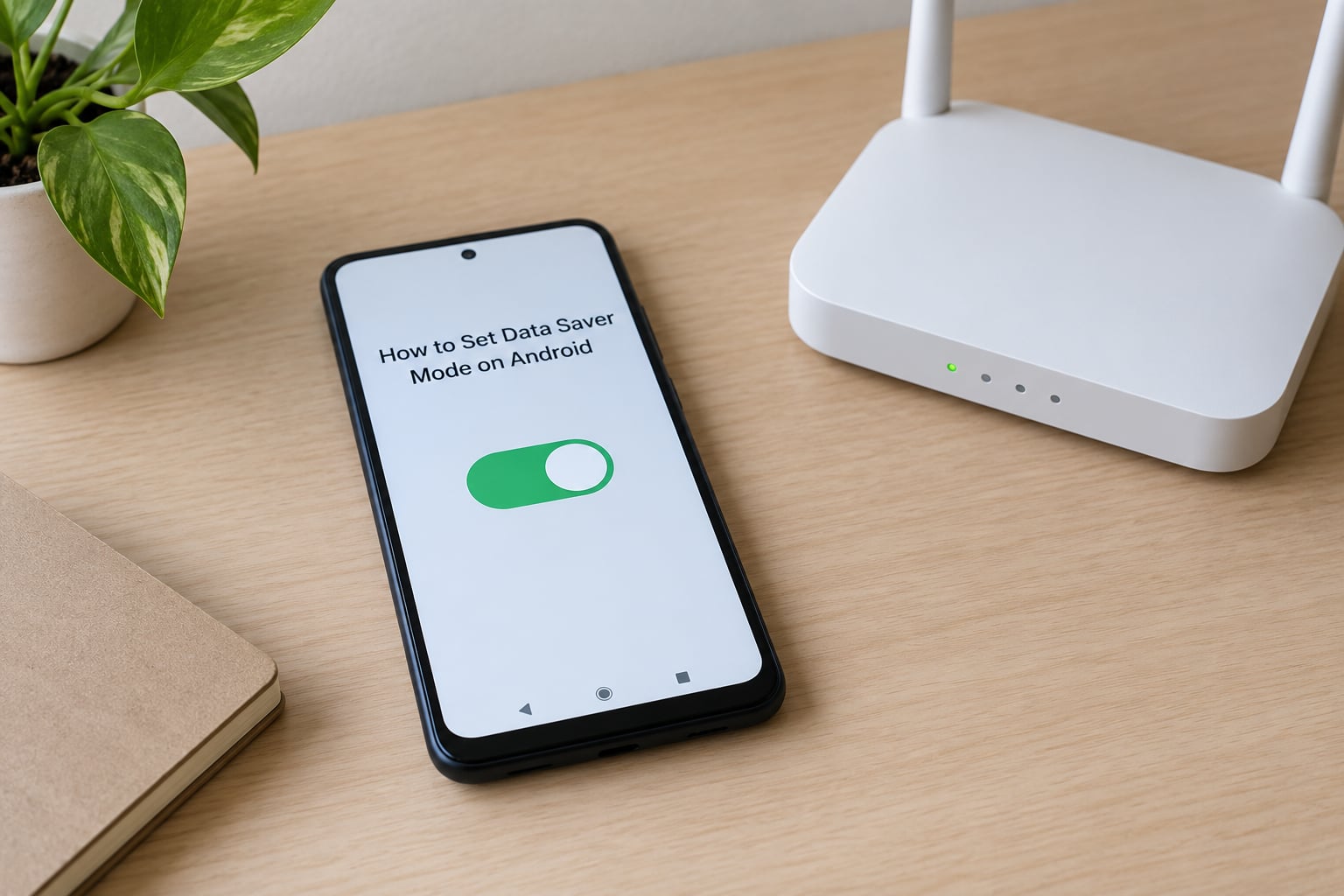
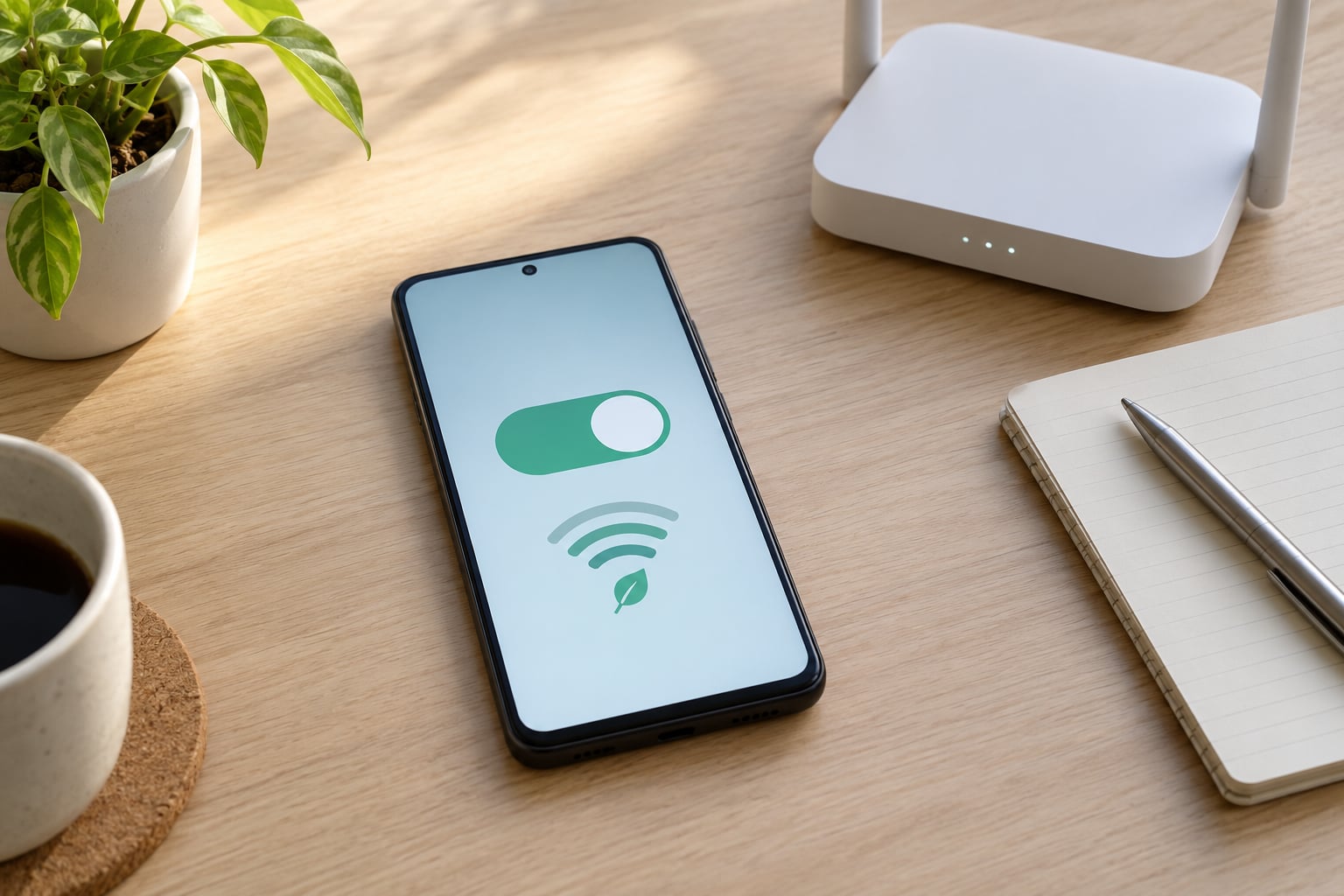
Data Saver is Android’s built-in throttle. On current Android versions it sits at Settings > Network & internet > Data Saver. Some phone makers bury it elsewhere, and Samsung models commonly put it at Settings > Connections > Data usage, so search your settings app for Saver if the first path does not exist.
Once enabled, Android restricts background data for apps that are not on your favourites list. It also blocks some automatic downloads and lowers the quality of media on metered connections. Apps you open yourself still work normally.
To confirm it is active, look for the Data Saver icon in your status bar or notification shade. You can also check the Data usage screen: the header shows a Data Saver entry that you can turn off and on again. That round trip is the quickest way to verify the toggle is actually wired up on your phone.
Note what Data Saver does not do. It does not stop an app you are actively using from using data, and it does not touch Wi-Fi traffic. If your usage is still high, the problem is usually foreground use, which is what the next two steps cover.
How to Restrict Background App Data on iPhone
iPhone does not have a single master switch for background data, so you work app by app. Open Settings > Cellular and scroll to the alphabetical app list; each app has a green toggle for cellular data. Tap any toggle off and that app uses Wi-Fi only.
This is the most targeted control you have, and it is per app rather than global. Turning cellular off for a messaging app means you can still receive notifications on Wi-Fi, but push alerts and photo sending stop when you leave home.
Below the app list, look for Background App Refresh. Under most iOS versions it sits at Settings > General > Background App Refresh, or under Cellular options on some releases, and you can set it per app or switch it off entirely. Leaving it on for your mail and calendar apps is usually reasonable; leaving it on for everything is how a data cap disappears quietly.
For the global switch, go to Settings > Cellular > Cellular Data Options > Low Data Mode. Low Data Mode pauses background activity, stops some automatic downloads such as app updates, and reduces the quality of streaming on cellular. The exact label of the final screen varies a little by version, so if you cannot see Low Data Mode you are likely on an older release and should update iOS first.
A common worry in forums is whether switching cellular off for an app breaks it. It does not break the app, but it will not connect over mobile, so calls and video inside it will not start off Wi-Fi. That trade is worth it for the two or three apps you barely open.
How to Stop Apps Syncing Large Files
Automatic downloads are usually the biggest hidden cost. The default behaviour of most apps is to fetch the highest quality version of everything, immediately, whether or not you are looking at it.
| App | Default behaviour to change | Where the toggle lives |
|---|---|---|
| Photos / Google Photos | Full-resolution backup and unlimited cloud storage | Photos > Backup, switch off backup or set storage to storage saver; Google Photos > Backup > Storage saver |
| Automatic media download on mobile data | Settings > Storage and Data > Media auto-download, choose Wi-Fi only | |
| Preloading video and higher-resolution feed | Settings > Cellular > Use less cellular data | |
| Spotify | Audio quality plus background streaming | Settings > Data > Data Saver on mobile; lower audio quality under Music quality |
| YouTube | Auto quality, autoplay, higher frame rates | Settings > Data usage > turn off enhanced bitrates and set a lower Wi-Fi and mobile quality |
| Play Store / App Store | Automatic app updates | Play Store > Settings > Network preferences > Auto-update apps; App Store > Settings > App Updates |
Set every download you do not need to Wi-Fi only, and pre-download what you will want to watch or listen to while you are on home Wi-Fi. Podcast apps and video apps are the easiest wins here, since one episode at high bitrate can be larger than a full day of everything else you use.
For developers reading this: the same default is your responsibility. An app that ships 400 KB thumbnails for a list that renders at 64 pixels is charging your users for pixels nobody sees.
How to Reduce Browser and Streaming Data
Browsers are the easiest place to get a measurable cut. In Chrome on Android, open Chrome > Settings > More settings > Data Saver and choose the stronger compression setting. Google has documented that this mode can cut data use inside the app substantially. In Safari on iPhone, Low Data Mode already reduces background loading and lowers the quality of streamed content.
Beyond that, three habits cover most of it. Lower the default video quality inside each app rather than relying on auto quality, which climbs to whatever the connection allows. Turn off autoplay, since a muted preview still downloads video. And close background tabs you are not using, because several browsers keep prefetching pages for them.
Prefer downloading over streaming whenever you can do it on Wi-Fi. A downloaded episode or a saved map area costs nothing extra on the meter, and it does not drop out in a lift or a car park.
One more counterintuitive point: do not clear your browser cache while you are on cellular. Clearing it makes the app re-download everything you were about to view, which spends data to save you nothing. Cache only eats space, not allowance.
How to Check Which Apps Use the Most Data
On Android, go to Settings > Network & internet > Data usage > Mobile data usage, which sorts apps by megabytes and splits foreground from background. On older Android versions the path is Settings > Data Usage, and Samsung users find it at Settings > Connections > Data usage > Mobile data usage, which is the path people on tight plans mention most often.
On iPhone, open Settings > Cellular and scroll down. The list shows current-cycle usage per app, with each app’s current and last-period totals.
Measure over a real window, not an afternoon. Look at a full billing cycle, or reset the counters and watch seven days of ordinary use. Data Saver on Android and Reset Statistics at the bottom of the iOS Cellular screen both zero out the history, and on iOS that also means the previous period’s figures disappear, so screenshot them first if you want a comparison.
Then act on the top three offenders rather than everything. Turn off cellular for the two or three apps you open weekly, leave the rest alone, and re-check after a week. A targeted fix holds; a blanket shutdown of every background permission tends to break something you needed and gets reverted.
Carrier counters disagree with phone counters all the time, usually because of a billing cycle boundary or roaming traffic counted at the network end. Treat the phone as the finer tool for diagnosis and the carrier as the authority on billing.
How to Save Data in Your Own App
If you build civic dashboards, field survey tools or transit apps, your data choices land on someone’s capped plan. A few measures do most of the work.
- Paginate and lazy-load. Fetch 25 rows instead of 5,000, and load images only when a card scrolls into view.
- Ship compressed images. WebP or AVIF at a sensible width, served through a CDN so the phone downloads a thumbnail rather than a full-resolution photo.
- Send deltas, not full states. A sync endpoint that returns only changed records since the last cursor beats re-downloading the whole dataset on every launch.
- Cache responses and compress the API. Brotli or gzip on responses, plus a short TTL, removes most repeated round trips.
- Adaptive media. Serve low-resolution tiles on cellular and full detail on Wi-Fi, using the NetworkInformation API or a connection-quality hint.
- Offline tiles and records. Pre-cache map regions and reference data over Wi-Fi so field staff in a dead zone do not burn allowance on retries.
- Give users a refresh control. A manual pull-to-refresh plus a background sync interval lets someone on a small plan decide when to spend.
Retry logic deserves special care. A request that times out on a weak signal and retries immediately can multiply the real cost of a single page load. Back off exponentially before retrying.
Common Mistakes
Clearing cache on cellular. It frees storage and burns data, because the app re-downloads what you were about to open. Clear caches on Wi-Fi, or not at all.
Turning off background data for every app at once. It looks thorough and usually gets undone within a week, because something important stops syncing. Pick the top offenders and fix those.
Compressing everything to the lowest quality. Tiny images and audio you re-download every session can cost more than the original. Compress sensibly and cache the result.
Deleting offline maps and offline documents. They exist precisely for the day your data runs out. Keep them, and refresh them over Wi-Fi.
Assuming one settings name works everywhere. The same setting is called Network switch, Wi-Fi Assist, Smart network switch or Use Wi-Fi when available depending on the maker and version. Search by function, not by exact label.
Measuring for a day and drawing conclusions. A single day misses backup cycles, weekly podcast downloads and app update weeks. Give any test at least seven days.
Trusting the phone counter over the carrier bill for billing questions. Use the phone to find the app, and the carrier statement to settle the charge.
Frequently Asked Questions
Does Data Saver or Low Data Mode really reduce app data usage?
Yes. On Android, Data Saver restricts background data for most apps and lowers media quality on metered connections. On iPhone, Low Data Mode pauses background activity, pauses some automatic downloads and reduces streaming quality. Both keep working when you open an app yourself, so they cut the silent consumption rather than your deliberate use.
Can I set an app to use Wi-Fi only on Android?
Sort of. Android does not offer a true Wi-Fi-only flag per app, but two settings together get close: restrict background data so the app only transfers while open, and mark the Wi-Fi connection as metered so it treats the network as limited. Turning cellular off entirely for the app is the same idea on iPhone.
Do offline maps really save data on a capped plan?
Yes, if you download them in advance on Wi-Fi. A downloaded map region for a city is a fixed download that costs nothing afterwards, while online navigation re-fetches tiles as you move. Refresh regions over Wi-Fi rather than deleting them to reclaim space, because deleting them is exactly when you will need them.
How much data does streaming video use on mobile data?
It depends far more on quality than on screen size. Video streams roughly in proportion to bitrate, so dropping from a high definition stream to a low definition one cuts the same hour of watching to a fraction of the data. The fix is to set a specific quality inside each app rather than leaving the setting on auto, which climbs whenever the connection allows.
Will turning off cellular data for an app break it?
The app still works, but only while you are on Wi-Fi. Calls, video and push notifications inside that app will fail on mobile. That is why it suits low-value apps you open occasionally, and why you should leave cellular on for maps, messaging and anything you rely on for navigation.
Should I reset my data usage statistics?
Only once you have a baseline. Resetting gives you a clean per-app picture over a window you control, which is useful for comparing a month before and after changes. On iPhone the Reset Statistics button also clears the previous period figures, so screenshot them first. Check the carrier statement for anything involving billing.
Conclusion
Start with three actions this week. Check the per-app data usage screen and note the top three apps using your allowance, turn on Data Saver or Low Data Mode so background syncing stops, and switch automatic downloads, photo backup and high-resolution streaming to Wi-Fi only.
Then give it seven days and compare, because some of those changes may break something you relied on and you will want to know now rather than when your data is gone. Fix the breakage specifically, keep the rest, and check the same screen again next week.