Progressive web apps work by adding three pieces to an ordinary website: a web app manifest, a service worker, and an HTTPS connection. Together they let a browser install a site to a home screen, cache files for offline use, and run it in its own window without an app store download.
Nothing about that requires a rewrite. The page is still HTML, CSS and JavaScript, served over the web. What changes is that a small piece of JavaScript now sits between the network and the page, deciding where each piece of data comes from. That single addition is what most people mean when they ask how progressive web apps work.
Table of Contents
- What Is a Progressive Web App?
- How Progressive Web Apps Work
- What happens when someone opens a PWA
- How progressive web apps handle a request step by step
- What Does the Web App Manifest Do?
- How Do Service Workers Enable Offline Use?
- How Does a PWA Become Installable?
- How Do PWAs Handle Updates?
- What Can PWAs Do and What Can’t They?
- How Are PWAs Built for Real-World Applications?
- Frequently Asked Questions
- Do progressive web apps work without an internet connection?
- Are progressive web apps better than native mobile apps?
- What is the difference between a service worker and a web cache?
- Which browsers support progressive web apps?
- Can a PWA send push notifications?
- How do I test whether my website is a progressive web app?
What Is a Progressive Web App?
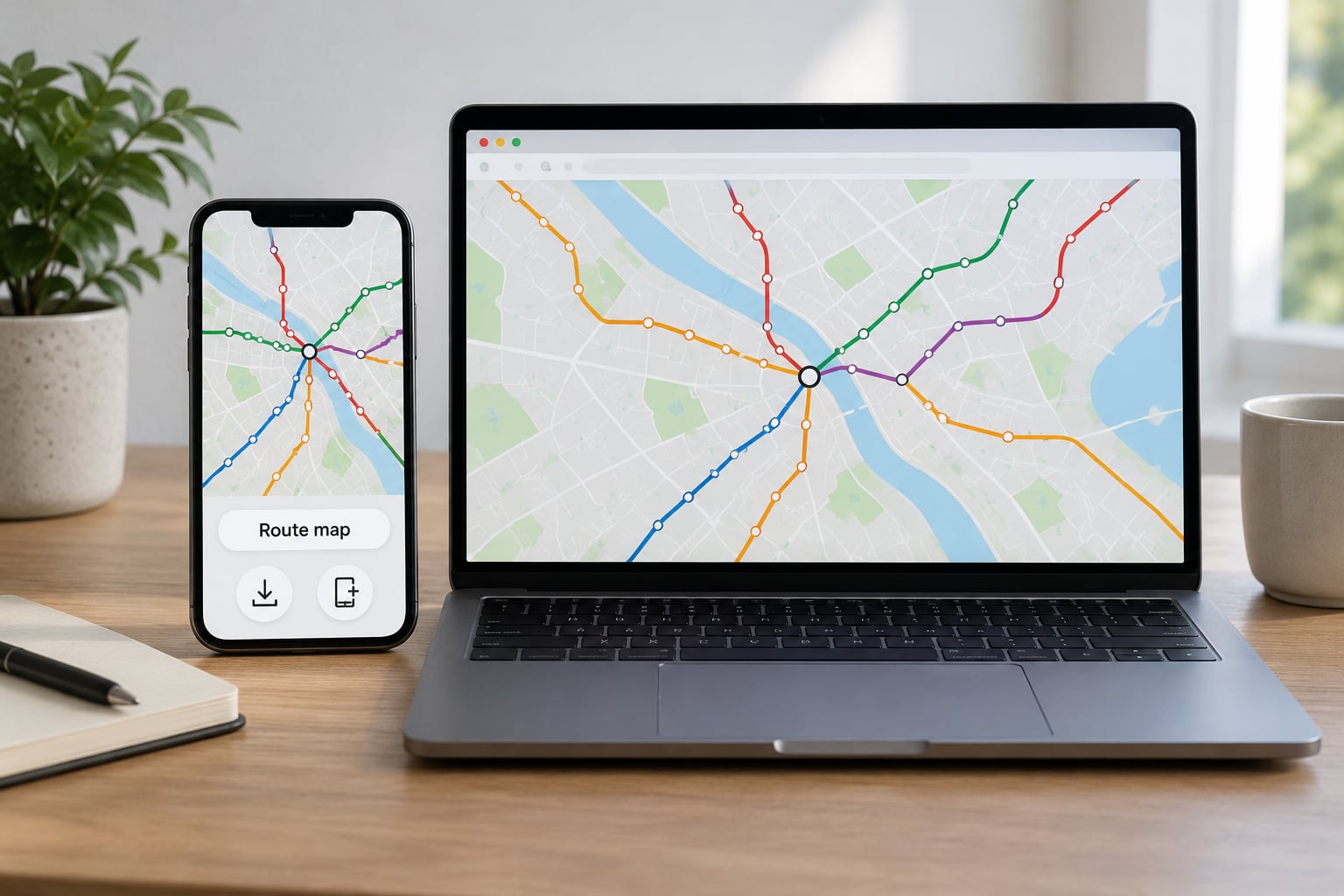
A progressive web app is a website that behaves like an installed program. It loads in any browser, then gains app-like traits: an icon on your home screen, a window without browser controls, cached content that survives a dead connection, and background updates that land without a store review.
The word “progressive” describes the approach, not a version number. Features arrive in layers. A user on a slow phone with no service worker still gets a working page, just without offline support. Add a service worker and caching, and the offline layer switches on. Nothing breaks for the user who never gets that far.
That is the difference from a native app, which ships as a compiled binary through an app store, and from a conventional website, which reloads every request over the network. A PWA sits between them.
| Factor | Conventional website | Progressive web app | Native app |
|---|---|---|---|
| Delivery | URL typed or clicked | URL, plus optional install to home screen | Download from an app store |
| Installation | Bookmark | Install prompt, home screen icon, own window | Store install and update |
| Offline use | Error page | Cached app shell and assets | Full offline support by design |
| Updates | Whatever the server serves | Service worker checks and swaps versions | Store review and staged rollout |
| Platform reach | Any browser | Any modern browser, one codebase | Separate builds per platform |
One caveat worth saying early: a PWA is still a web page. Developers on r/PWA and r/webdev often point out that install friction, not caching, is the harder problem to solve, and that many people treat a home screen icon as a bookmark shortcut rather than an installed app.
How Progressive Web Apps Work
Three parts do the heavy lifting. The web app manifest is a JSON file that tells the operating system the app’s name, icon, colours and starting URL. The service worker is a JavaScript file the browser runs separately from your page, intercepting network requests and answering them from local storage. HTTPS is required because service workers only run on secure origins.
Underneath both is the app shell: the HTML, CSS and JavaScript that draw the interface. The shell is small and stable, which makes it ideal for caching. Your data is separate, so it can change without forcing a fresh shell download.
What happens when someone opens a PWA
- The browser loads the page. HTML, CSS and JavaScript arrive over HTTPS like any other site.
- The page registers a service worker. A call to
navigator.serviceWorker.register()hands a file to the browser, which installs it in the background. - The manifest is fetched. The browser reads the name, icons, colours and start URL so it can prepare an install prompt.
- The service worker pre-caches the app shell. Core files go into the Cache API so the next visit skips the network entirely.
- The install option appears. In browsers that meet the criteria, a prompt offers to add the app to the home screen.
- Later visits run from cache first. The service worker answers requests locally and quietly refreshes cached copies in the background.
How progressive web apps handle a request step by step
Once active, the service worker sits in front of every request the page makes. Each one triggers a fetch event, and the worker decides what to do. It can answer from cache, ask the network, or combine both.
If a worker calls event.respondWith(), the browser waits for that promise instead of making its own request. That single method is the mechanism behind fast repeat visits and offline fallbacks. When no service worker controls the page, the browser falls back to normal network behaviour, which is why the site still works on a first visit with no connection at all.
That fallback matters more than it sounds. A PWA that only works after installation is a broken website; a PWA that works fully online and improves when cached is the pattern the name promises.
What Does the Web App Manifest Do?
The manifest is a JSON file linked from the page head. It does not run code. It describes the app to the browser, and the browser decides what to do with it. Several fields do real work:
{
  "name": "City Transit Planner",
  "short_name": "Transit",
  "start_url": "/?source=pwa",
  "scope": "/",
  "display": "standalone",
  "theme_color": "#0b3d5c",
  "background_color": "#ffffff",
  "icons": [
    { "src": "/icons/icon-192.png", "sizes": "192x192", "type": "image/png" },
    { "src": "/icons/icon-512.png", "sizes": "512x512", "type": "image/png" }
  ]
}
- name and short_name set the label under the icon, and short_name is what gets truncated on a phone home screen.
- start_url decides where a tap on the icon opens the app.
- scope defines the URL range the service worker controls. A narrow scope means requests outside it bypass it.
- display controls the window.
standaloneremoves the address bar,fullscreenandminimal-uistrip more. - theme_color tints the status bar or title area so the app looks like it belongs on the device.
- background_color fills the screen while the app boots, which removes the white flash on a dark phone.
- icons supply the images for the home screen, splash screen and store-style listings. Missing or wrong-size icons are a common reason an install prompt never appears.
Fields like categories and description are descriptive metadata. They help humans and some distribution surfaces, but they do not make the app installable.
How Do Service Workers Enable Offline Use?
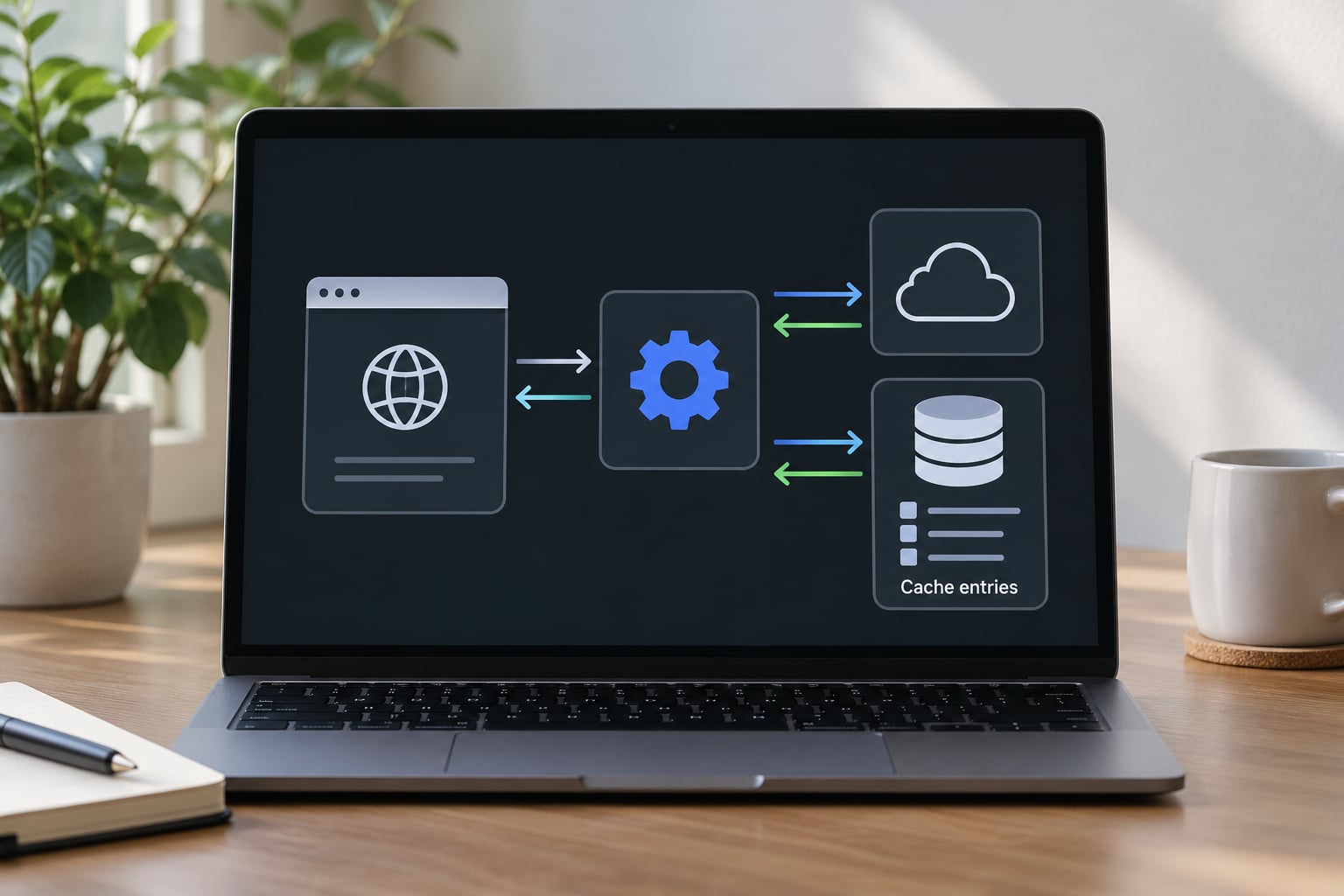
A service worker is an event-driven script with its own thread. It has no DOM and never touches the page directly. It wakes for four events: register from your code, then install, activate and fetch for every subsequent request it handles.
A minimal fetch handler looks like this:
self.addEventListener('fetch', event => {
  event.respondWith(
    caches.match(event.request).then(cached => {
      return cached || fetch(event.request);
    })
  );
});
During install, the worker usually precaches the app shell with event.waitUntil(). During fetch, it either serves a stored response or hits the network. Cached data that needs to survive longer than a session, such as saved route plans or submitted reports, belongs in IndexedDB rather than the Cache API, which stores whole responses keyed by request.
| Strategy | How it works | Good fit |
|---|---|---|
| Cache first | Serve the cached copy, refresh it in the background | App shell, icons, fonts, static assets |
| Network first | Try the network, fall back to cache when it fails | Live arrival boards, alerts, current conditions |
| Stale while revalidate | Serve cached instantly, fetch an update for next time | News feeds, transit schedules, reference pages |
| Network only | Always request; queue offline with background sync | Payments, form submissions that must succeed |
A service worker does not make every feature work offline. It caches what a developer tells it to cache. A feature that depends on a live API, a GPS fix, or a payment authorisation still needs a network path or an explicit fallback, and if you cache the wrong responses you will serve stale transit times to someone trying to catch a bus.
How Does a PWA Become Installable?
Browsers check a short list before offering installation. The site must be served over HTTPS, load a manifest with a name, icons and a start URL, and register a service worker with a working fetch handler. Chrome will show an install prompt in its address bar once those are met, even if the app itself is fairly plain.
Installing puts an icon on the home screen. Tapping it opens the app in standalone display mode, with no address bar, no tab strip and no back button from the browser. The app keeps its own back history internally, which is something teams often forget to implement.
Everyday use in a browser tab is still fine, and for a civic service portal it may be the only mode that matters. Naming and prompts vary by browser and platform, so test rather than assume. On iOS, Safari has no install button in the address bar; users add the app through Share, then Add to Home Screen, which developers describe as the single biggest install pain point they face.
How Do PWAs Handle Updates?
Updates are the clearest example of how progressive web apps differ from native apps. There is no store review and no staged rollout. The browser handles it.
Developers give each cache a version name. When the code changes, the service worker file changes too, and the browser notices on its next check, typically after the tab is closed and reopened or when the page is reloaded. The new worker installs into a new versioned cache, the activate event runs, and old caches are deleted in that event.
- Use versioned cache names. Without them, users keep receiving stale files indefinitely.
- Delete old caches in
activate. Storage adds up fast on long-lived installs. - Tell users when a refresh is ready. A small banner beats a confusing half-updated screen.
- Deploy the service worker last. If it arrives before your HTML, a mismatch breaks the app until the next update.
- Test with the old worker forced on. Chrome DevTools lets you activate updates manually.
One risk remains: a user on a cached version for weeks with no reload. That is a real trade-off for accepting instant updates without a store gate.
What Can PWAs Do and What Can’t They?
| Capability | Where PWAs stand today |
|---|---|
| Offline reading and caching | Strong, via service worker and Cache API |
| Home screen install and standalone window | Supported, with platform-specific install flows |
| Push notifications | Supported on desktop and Android; iOS gained web push in version 16.4 |
| Background sync | Available in Chromium browsers; behaviour on iOS differs and the platform can drop queued work |
| Payments | Supported in most markets, but store billing rules differ and store-free monetisation has no standard path |
| Camera, microphone, GPS | Available through web APIs; sustained background location is unreliable |
| Deep hardware access | Bluetooth, NFC and background processing remain weaker than native |
| Distribution and indexing | No store gatekeeping, and the content is indexable by search engines |
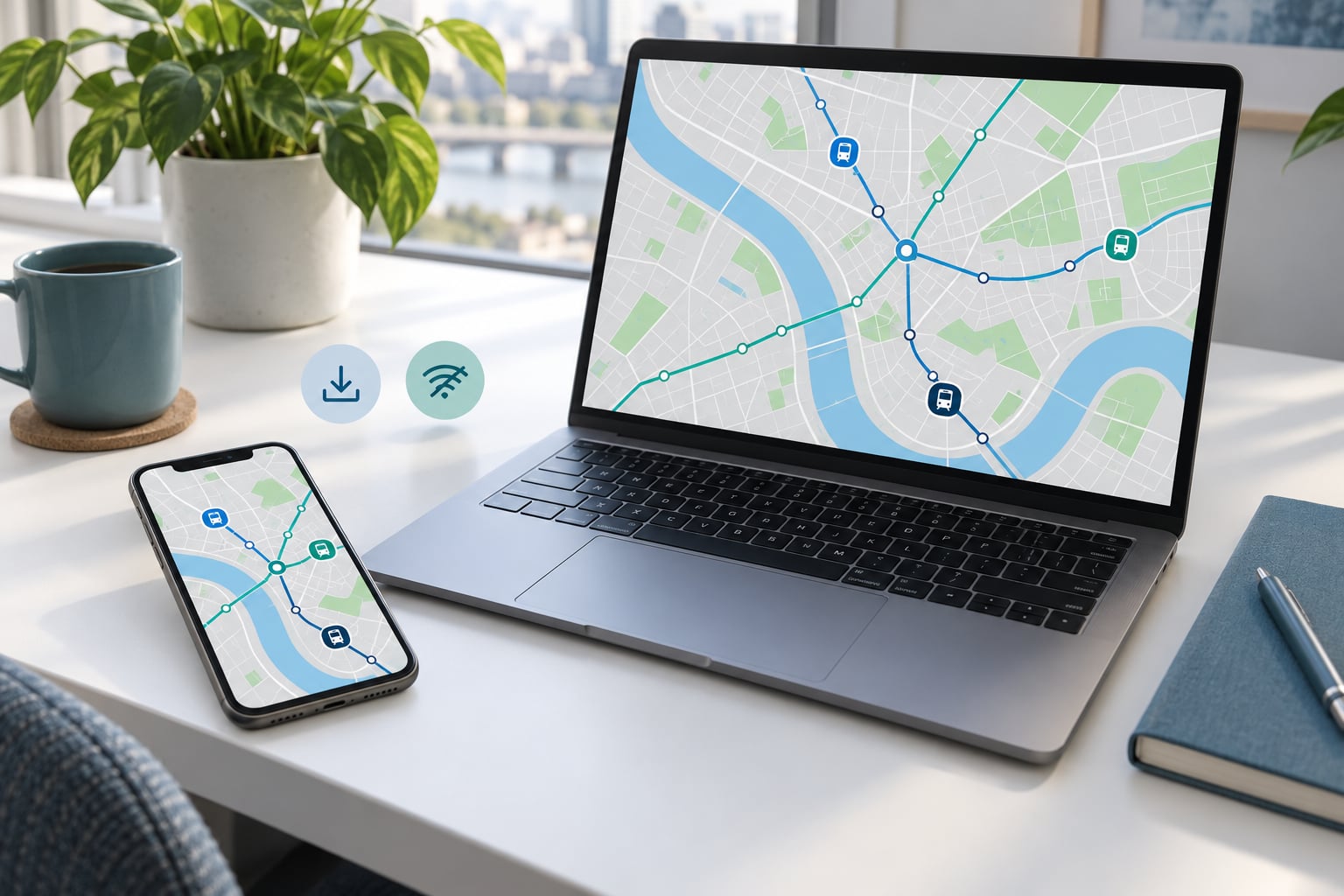
For civic work, the indexing and reach points carry real weight. A municipal app in an app store is invisible to a search for a service name, and installs start with a download on a connection that may not be there. A PWA loads over the same link you would put in a leaflet, keeps working when the signal drops, and a rider can check a saved route while standing in a tunnel.
The honest weak spot is hardware dependence. Field crews logging GPS fixes offline all day are the case developers on r/app_developer keep moving to native for, because background location and long-running sensors are exactly where the web platform is thinnest.
How Are PWAs Built for Real-World Applications?
Start with the problem, not the API. Teams who begin with “let’s add a service worker” usually cache the wrong things. Begin with the one thing a user must be able to do when the network is unreliable, and work outward from there.
- Define the offline use case. Reading a saved schedule? Filing a pothole report in a dead zone? The answer decides your cache strategy.
- Build the responsive app shell first. It must work well as a plain website on any screen before anything else is added.
- Add the manifest. Correct icons, a real start URL and
display: standalone. - Add the service worker. Precache the shell, then choose a strategy per type of request. A library such as Workbox handles most of the version and cleanup plumbing.
- Test across browsers and on a throttled connection. Chrome DevTools has an offline toggle and a Slow 3G profile that exposes problems quickly.
- Measure and deploy safely. Watch install rate, offline hit rate and error rates after each release.
Progressive enhancement is the organising idea. Every layer, including the last one, assumes the layer before it might not be there.
Frequently Asked Questions
Do progressive web apps work without an internet connection?
They work partially, and the part depends entirely on what the developer cached. A service worker can serve the app shell and stored pages with no connection at all. Anything that needs live data, such as current arrival times or a payment authorisation, needs a cached copy or a clear message. Treat offline as a designed state, not an automatic one.
Are progressive web apps better than native mobile apps?
PWAs win on reach, cost and speed to market: one codebase, no store review, a link you can put in a leaflet, and content that search engines can index. Native apps win on deep hardware access, sustained background processing and store billing. Most teams ship on the web first and move to native once they hit a platform limit they cannot work around.
What is the difference between a service worker and a web cache?
A web cache sits in front of the network and reuses recent responses according to headers you do not directly control. A service worker is a JavaScript program you write, running in its own context, that intercepts requests and decides the response. It also works offline, controls the Cache API and IndexedDB, and handles events like install, activate and push.
Which browsers support progressive web apps?
Chrome, Edge, Firefox and Safari all support service workers and web app manifests, so most PWAs run everywhere today. What differs is the install experience, push notification support and background sync behaviour, particularly on iOS, where installation goes through Share and Add to Home Screen. Check the specific capability you need rather than assuming broad support covers it.
Can a PWA send push notifications?
Yes, using the Push API with a service worker that listens for a push event, even when the app is closed. Support is solid on desktop Chromium browsers and Android. iOS added web push in version 16.4, and the app must be installed to the home screen first. Notification permission is still a user decision your app cannot bypass.
How do I test whether my website is a progressive web app?
Open Chrome DevTools, go to the Application panel, and check two things: the Manifest section for a parsed name, icons and display mode, and the Service Workers section for an active worker with a fetch handler. Then toggle offline mode in the Network panel and reload. If the interface still loads and cached routes work, the basics are in place.
Start with one question: what must a user be able to do when the connection drops? Cache that, ship it as a working website first, and add the manifest and service worker afterwards. If you are testing an existing build, open the Application panel in Chrome DevTools, look for an active worker and a parsed manifest, then switch on offline mode and reload. That single test tells you more than any feature list.